Documentation · Jira import
How the Jira importer actually works, step by step
This page documents the mechanics of importing a Jira project into SPIREX: what gets read, in what order, and where a real migration tends to raise questions. For the case for migrating at all, see the Jira alternative comparison; this page assumes you already have a project connected and want to know what happens next.
By the SPIREX team · Published
Step 1: connect your Atlassian instance
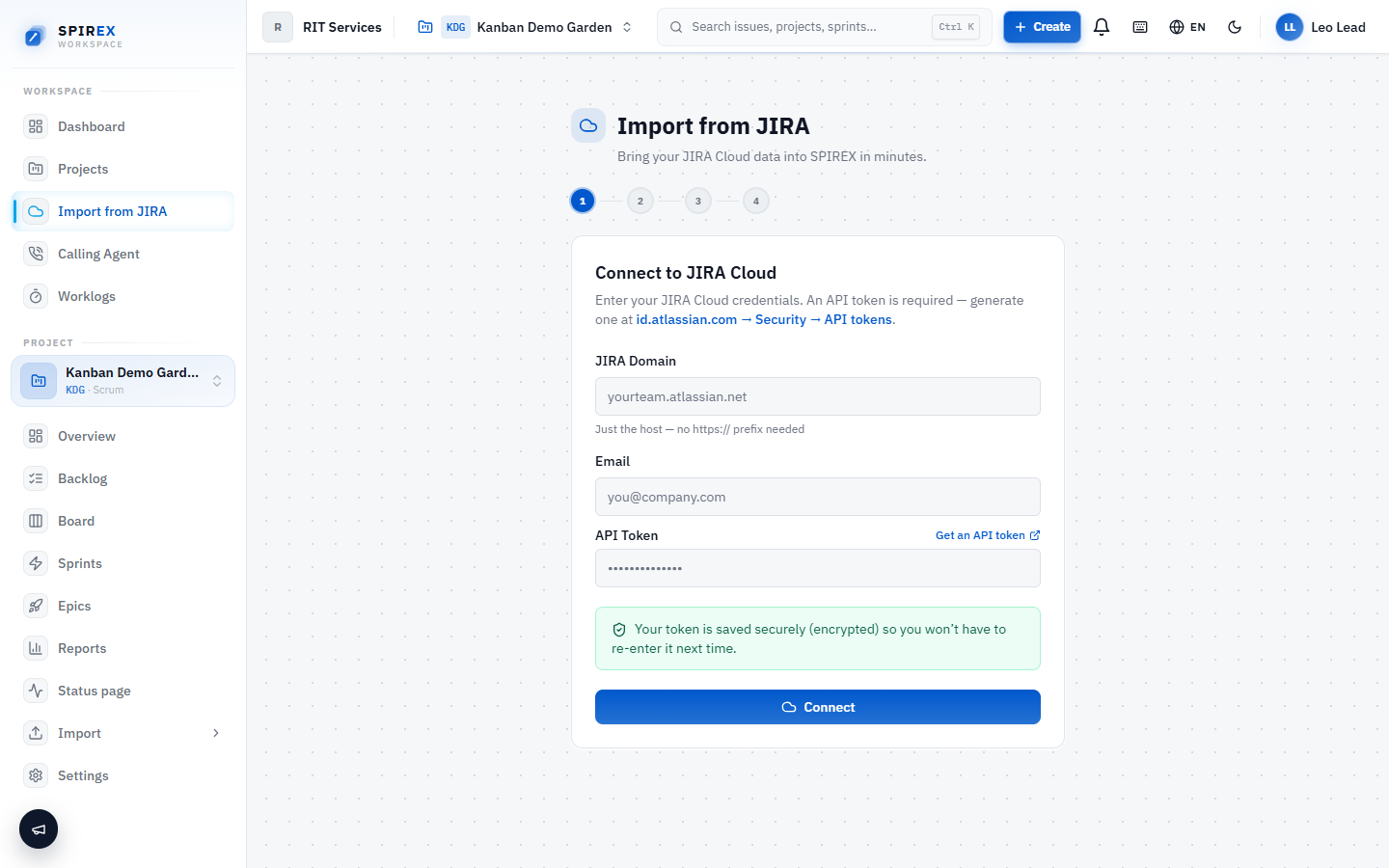
The import starts by connecting to your Atlassian instance and selecting one or more projects to bring across. Multiple projects can be selected in the same pass, so a migration with several Jira projects does not require repeating the whole process per project.
Step 2: the import runs with live progress, not a silent job
Progress streams back over the same request as the import runs, phase by phase with counts, rather than leaving you refreshing a page and guessing whether it is stuck. What is being read at each phase (issues, then comments, then attachments) is visible while it happens.
Step 3: what is actually converted, not just copied
A migration is only useful if the context survives it, so the importer does real conversion work rather than a shallow copy:
- Issue and subtask descriptions are converted from Atlassian document format to Markdown, not dumped as raw JSON or stripped to plain text.
- Comments are imported with their original authors and threading intact.
- Epic links are resolved from both the modern `parent` field (next-gen projects) and the older epic-link custom field (classic projects), so the hierarchy comes across correctly either way.
- Attachments are downloaded as real binary files into your own storage, not left as links back to Atlassian.
- Images embedded inline inside descriptions and comments are rewritten to point at that same storage, so a description does not go blank the day someone's Atlassian access expires.
- Workflow statuses are carried over, so the board you land on resembles the one you left.
Step 4: people who are not in SPIREX yet
Jira history is full of authors and assignees who do not have a SPIREX account yet, and some may have left the company entirely. The importer creates a placeholder user for each unmatched Jira account, so authorship and assignment are preserved instead of silently dropped or blocked pending sign-up.
When the real person joins later, linking the placeholder to their account reassigns every historical reference to them. Where an imported name closely matches an existing member, the import flags the match for confirmation rather than merging two different people automatically.
What the importer deliberately does not bring across
Jira automation rules, marketplace-app data, dashboards, saved filters, and Jira-specific configuration such as screens and permission schemes have no SPIREX equivalent and are not imported. Plan to re-establish workflows and reporting views on the SPIREX side rather than expecting a byte-for-byte administrative copy.
Frequently asked questions
For teams that need history to survive the move (comments, epic links, attachments, inline images, authorship), a full-fidelity importer is the right tool for the job, and that is specifically what this one is built to preserve. If you only need a handful of issue titles moved and do not care about history, a simpler CSV export/import would also work and would be more effort than it is worth to set up this way.
A CSV export flattens an issue to its fields and drops everything relational: comment threads, epic hierarchy, inline images, attachment binaries. This importer reads the Atlassian API directly and reconstructs those relationships, which a flat file format cannot represent.
The import flags close name matches for confirmation rather than merging automatically, so you decide whether two names are the same person before history gets attributed to a single account.
The importer works by connecting directly to your Atlassian instance rather than reading an offline export file. This is what allows it to fetch attachments and resolve authors during the import rather than requiring a pre-prepared export.
Each import brings across the selected project's history as it stands at run time. For an ongoing migration, the documented approach is to run one project fully, verify it, and keep Jira read-only during the transition rather than treating the importer as a continuous two-way sync.
Try it on your messiest real project
Create a free workspace, connect Atlassian, and import the project with the longest comment threads and the most attachments. If the history survives that one, it survives the rest.