Documentation · AI ticket drafting
How AI ticket drafting and the voice agent work in SPIREX
SPIREX can turn a sentence, a screenshot, a document, or a phone call into a filed ticket: title, description, type and priority drafted by Qwen instead of typed field by field. This page documents what each input mode actually does, what happens to your data, and what the free-tier quota means in practice.
By the SPIREX team · Published
Four ways to create a ticket without filling out a form
Each mode produces a normal SPIREX story afterward, fully editable and not a locked AI artifact, so a draft ticket is a starting point, not a final answer you have to accept as-is.
- Text: describe the issue in a sentence or two, and SPIREX drafts a structured ticket (title, description, type, priority) from it.
- Image: attach a screenshot, and the draft is built from what is visible in it.
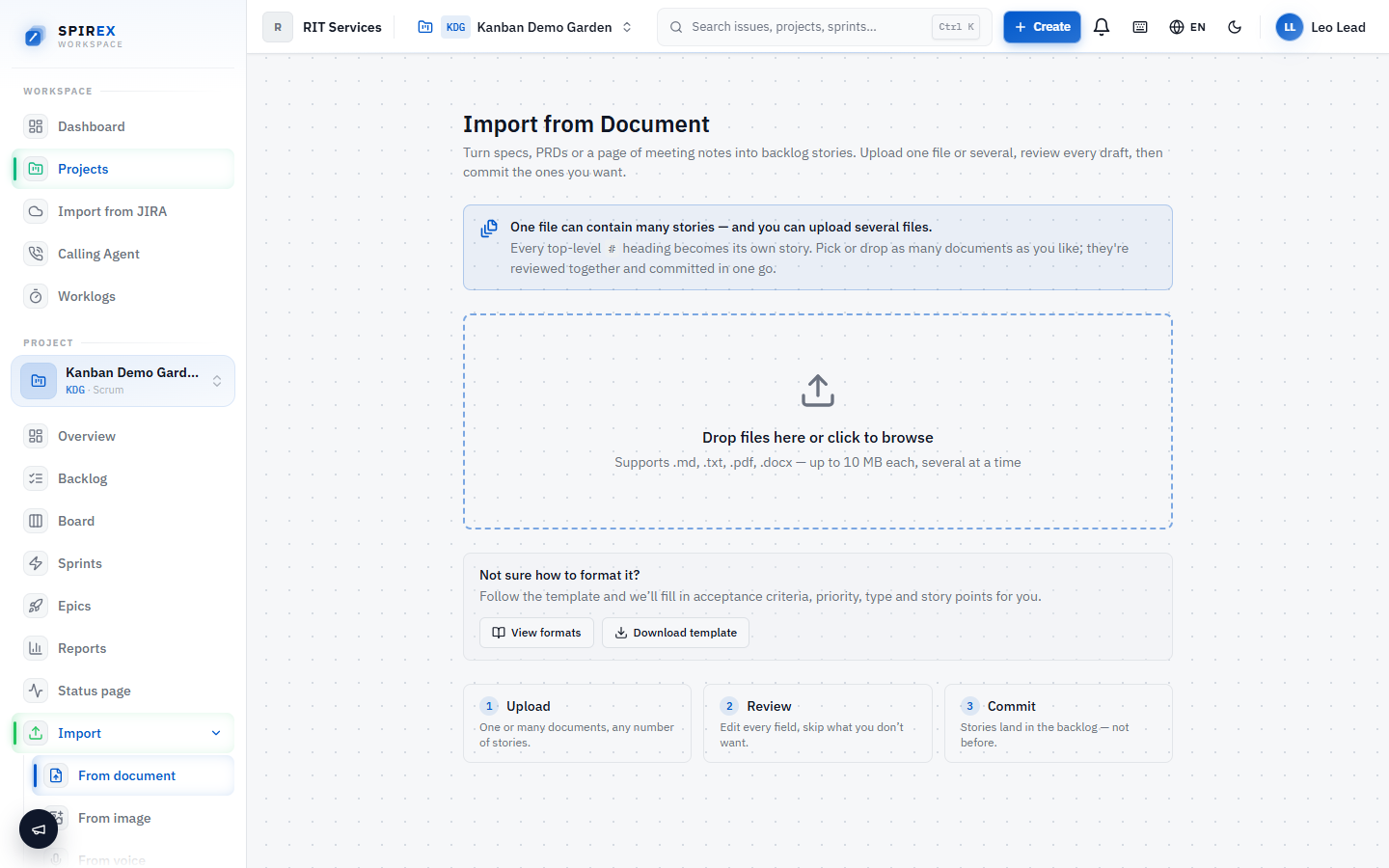
- Document: attach a longer document (a bug report, a spec excerpt) and get a ticket drafted from its contents.
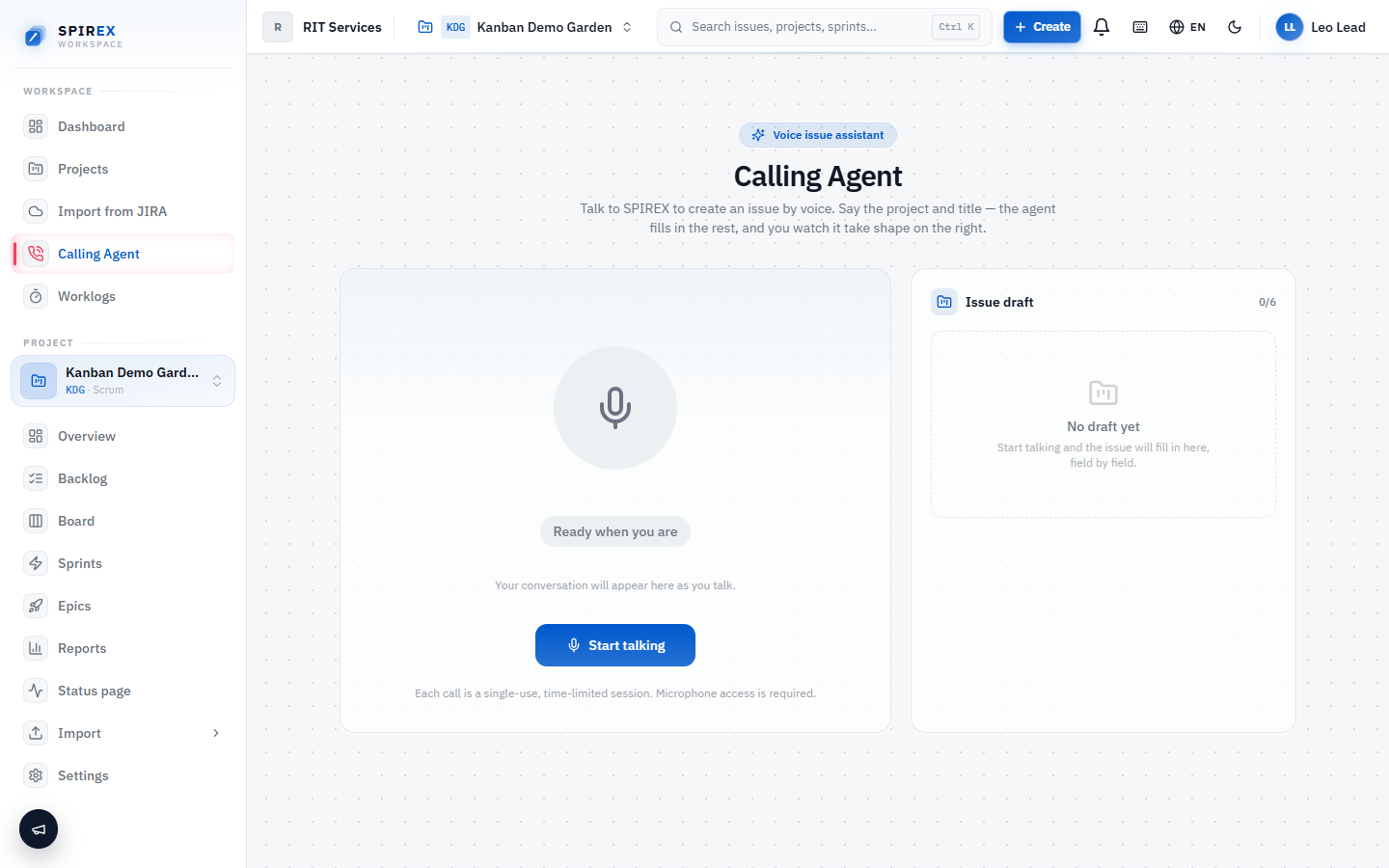
- Voice: call the voice agent directly and describe the issue out loud; it drafts and files the ticket from the conversation.
How the voice agent works
The voice agent runs a live call: you describe what is wrong, it asks clarifying questions where the description is ambiguous (an affected email address, which environment, what was expected versus what happened), and it drafts a ticket from the resulting conversation, including a reproduction-steps list built from what you described, not just a title.
The call is metered separately from AI-action drafting, on its own monthly per-user minute allowance, and it is a paid-plan feature rather than part of the free tier.
What model is doing the drafting, and what happens to the input
Drafting on the hosted plan runs on Qwen, a model SPIREX operates itself rather than sending your content to a third-party AI company. Self-hosted and Enterprise deployments can bring their own AI provider instead: the Anthropic API directly, or any OpenAI-compatible model through a LiteLLM proxy. A self-hosted deployment is not required to send data to a hosted AI provider it did not choose.
Quotas: what "25 AI actions a month" actually means
The free hosted plan includes 25 AI actions per month. This is a monthly quota checked before each action runs: once it is reached, new AI actions are blocked for the rest of that month rather than the account being charged for overage. The count resets at the start of the next month, and normal manual ticket creation is unaffected; the quota governs AI drafting specifically, not the product.
Frequently asked questions
What is checkable here rather than a marketing claim: SPIREX drafts tickets from four different input types, including a live voice call that asks clarifying questions. Most project-management tools with "AI" features cover text prompts only. Whether that makes it "the best" depends on whether voice and image-based ticket creation matter to your workflow; if you only ever want AI to summarize an existing ticket, that is a different feature this page is not claiming.
The agent asks structured clarifying questions in real time (what was expected, what actually happened, which environment) and turns the resulting conversation directly into a ticket with reproduction steps, without a human relaying it afterward. It is metered per user, per month, as a paid-plan feature.
They do not carry over. The quota resets to 25 at the start of each month rather than accumulating unused actions.
On self-hosted and Enterprise deployments, yes: point SPIREX at your own Anthropic API key directly, or at any OpenAI-compatible model through a LiteLLM proxy. The free hosted plan uses SPIREX's own self-hosted Qwen model.
The image mode accepts any attached image and drafts from what is visible in it; a photo of a whiteboard sketch and a screenshot of an error message are both valid inputs, though a clearer image produces a more accurate draft either way.
Draft your first ticket without typing it
Create a free workspace and try text, image or document drafting. 25 AI actions are included on the free plan, no credit card required.